Pages

Labels

Showing posts with label Facebook. Show all posts

Saturday, August 13, 2011

Turn Your Status Updates Into a Word Cloud


There’s a really fun way to visualize anyone’s status updates (even an entire country’s) as a word cloud. The Status Analyzer 3D

app will look at what it is you’ve been chatting about lately and generate a list, and then a pretty, colorful, animated cloud as pictured above.
You can share the results with others on the social networking site by posting it to your friends’ walls or by adding it to your profile.

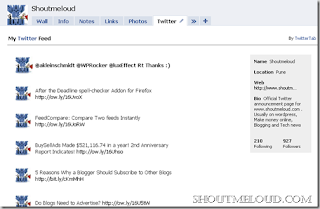
How to Add Twitter Tweets to your Facebook Fan Page?

Twitter and Facebook are one of the important factor for social media branding for any product, business and blog. Interlinking them will let you drive more traffic and more brand-awareness.


Symbols for Facebook ϡ

Desktop computer instructions for ALT facebook symbols:
• Press and hold left Alt key on your keyboard.

• While holding Alt key enter one of the codes below to get the corresponding facebook symbol.
• Important note: You need to use numbers on the right side of the keyboard for entering code, not the numbers on top, otherwise they won’t work.

Now Show Google AdSense on Facebook Pages - Make Money with Facebook


iwipa is a newly introduced Faceboook Application which helps to add additional fun to your facebook pages. Using iwipa, You can place iframes, html and fbml on your facebook pages. Earlier, i wrote how to create a chat room for facebook pages using iwipa which was a successful test. As iwipa allows you to use iframes, html and FBML on your pages, so you can also display Google Ads on your facebook pages and can earn money from Facebook pages. Here is how you can show Google Adsense in facebook.

HOW TO PLACE GOOGLE ADSENSE IN FACEBOOK PAGES ?

  • Login Your Facebook Account and Go to iwipa app page.
  • Click on "Go to App"
  • Click on "Install iwipa Page Now"
  • From the next page, select your "Facebook page" where you want to show Google Ads
  • Click on "Add iwipa= HTML + Iframe + FBML"

allow+application

  • Good, now go to your Facebook Page and Click on Welcome Tab (this is newly created tab) from the left sidebar and then click on "Click Here to Activate Your page"
  • Now you will see a complete iwipa admin interface from where you can manage your Facebook page.
  • Click on "Tabs and Layouts"

tabs+and+layouts

  • Now, drag and drop all boxes to tray and only keep two boxes (i.e. media box and comments - you can have as many boxes as you want however keep only two to test Google ads) in Main layout and then click on "Save Layout"

drag+and+drop
  • Click on "Edit Page Content"

edit+page+content

  • Now, click on Edit of media box, then a new window will pop-up

edit

  • Click on "Source", paste your Google Adsense code in body and click on "SAVE"

adsense+on+facebook

  • That's it ! Go to your page, click on "Welcome" tab and you will see Google Ads there.